


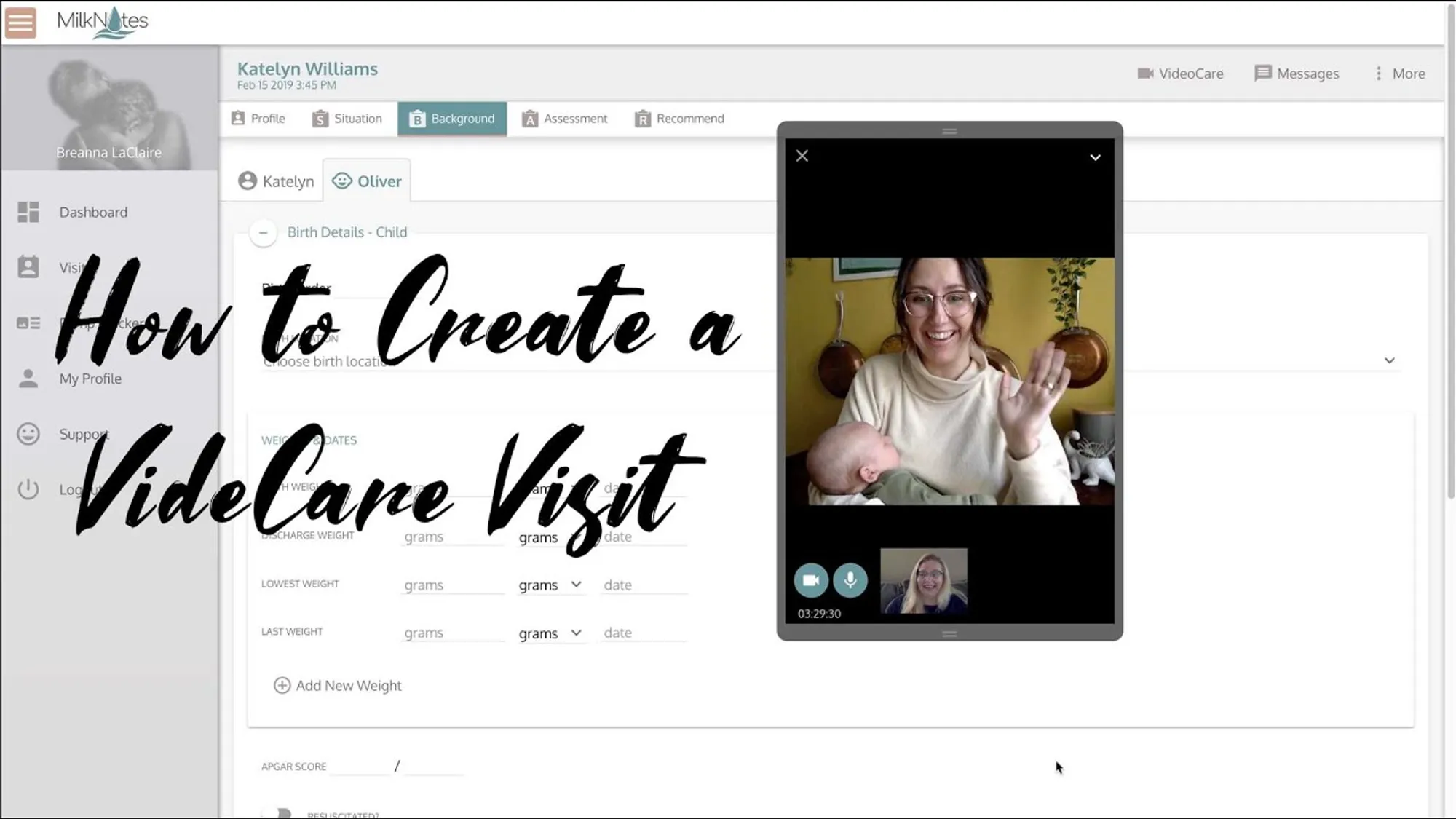
Learn how to create a VideoCare™ visit on MilkNotes with this step-by-step tutorial.
Creating a VideoCare™ Visit
Click Visits from the left menu. Choose whether the visit is with a new or existing client. Pick the date and time and then select VideoCare™ from the dropdown list of locations.
VideoCare™ is compatible with any web enabled device. iOS devices must use their native Safari browser for VideoCare™ to work properly. We recommend Chrome for all other devices.
Joining the Video Session
Up to ten minutes before your scheduled visit time, log in to MilkNotes and find your visit. Click the VideoCare™ button on the top right side of the chart. Follow the prompts to make sure your device is working properly and then enter the room.
Charting During Your Visit
The video window can be minimized, expanded, and moved around to flow seamlessly during your charting process. You can also navigate to any section of the visit while still being able to view your client in the video window.
When you’re finished with your visit, click the small X and it will end the call for both you and your client.
VideoCare™ makes it easy to provide high-quality lactation support remotely while maintaining HIPAA compliance.